using DevExpress.XtraPrinting;
using DevExpress.Printing.ExportHelpers;
using DevExpress.Export;

private void simpleButton1_Click(object sender, EventArgs e) {
    // Ensure that the data-aware export mode is enabled.
    DevExpress.Export.ExportSettings.DefaultExportType = ExportType.DataAware;
    // Create a new object defining how a document is exported to the XLSX format.
    XlsxExportOptionsEx options = new XlsxExportOptionsEx();
    // Subscribe to the CustomizeSheetHeader event.
    options.CustomizeSheetHeader += options_CustomizeSheetHeader;
    // Export the grid data to the XLSX format.
    string file = "grid-export.xlsx";
    gridControl.ExportToXlsx(file, options);
    // Open the created document.
    System.Diagnostics.Process.Start(file);
}

void options_CustomizeSheetHeader(DevExpress.Export.ContextEventArgs e) {
    // Create a new row.
    CellObject row = new CellObject();
    // Specify row values.
    row.Value = "The document is exported from the IssueList database.";
    // Specify row formatting.
    XlFormattingObject rowFormatting = new XlFormattingObject();
    rowFormatting.Font = new XlCellFont { Bold = true, Size = 14 };
    rowFormatting.Alignment = new DevExpress.Export.Xl.XlCellAlignment { HorizontalAlignment = DevExpress.Export.Xl.XlHorizontalAlignment.Center, VerticalAlignment = DevExpress.Export.Xl.XlVerticalAlignment.Top };
    row.Formatting = rowFormatting;
    // Add the created row to the output document.
    e.ExportContext.AddRow(new [] {row});
    // Add an empty row to the output document.
    e.ExportContext.AddRow();
    // Merge cells of two new rows.
    e.ExportContext.MergeCells(new DevExpress.Export.Xl.XlCellRange(new DevExpress.Export.Xl.XlCellPosition(0, 0), new DevExpress.Export.Xl.XlCellPosition(5, 1)));
}

Visual c# ms sql database çifte kontrol
SqlConnection connectionString = new SqlConnection("Server = " + ondegerler.SQLBAGLANTISI_KAYNAK + "; Database = " + ondegerler.SQLBAGLANTISI_VERITABANI + "; User Id = " + ondegerler.SQLBAGLANTISI_KULLANICI + "; Password = " + ondegerler.SQLBAGLANTISI_PAROLA);
connectionString.Open();
{
SqlCommand sqlcom2 = new SqlCommand("select count(malzeme_kodu) from tbl_malzeme where tbl_malzeme.malzeme_kodu = '" + Text_malzeme_kodu.Text + "'", connectionString);
if (sqlcom2.ExecuteScalar() != null)
{
int UserExist = (int)sqlcom2.ExecuteScalar();
if (UserExist > 0)
{
MessageBox.Show("Bu İsimde Malzeme Kodu Daha Önceden Yaratılmıştır!");
}
}
connectionString.Open();
{
SqlCommand sqlcom2 = new SqlCommand("select count(malzeme_kodu) from tbl_malzeme where tbl_malzeme.malzeme_kodu = '" + Text_malzeme_kodu.Text + "'", connectionString);
if (sqlcom2.ExecuteScalar() != null)
{
int UserExist = (int)sqlcom2.ExecuteScalar();
if (UserExist > 0)
{
MessageBox.Show("Bu İsimde Malzeme Kodu Daha Önceden Yaratılmıştır!");
}
}

visual c# update ms sql table from query inside txt file
// MessageBox.Show(Text_malzeme_grubu.EditValue.ToString());
// string connectionString = null;
SqlConnection connectionString = new SqlConnection("Server = " + ondegerler.SQLBAGLANTISI_KAYNAK + "; Database = " + ondegerler.SQLBAGLANTISI_VERITABANI + "; User Id = " + ondegerler.SQLBAGLANTISI_KULLANICI + "; Password = " + ondegerler.SQLBAGLANTISI_PAROLA);
connectionString.Open();
FileInfo file = new FileInfo(Application.StartupPath + "\\tbl_cari_kartlari_duzenle_kaydet.txt");
string duzenle = file.OpenText().ReadToEnd();
//MessageBox.Show(silinecekkod.ToString());
SqlCommand sqlcom = new SqlCommand(duzenle, connectionString);
sqlcom.Parameters.AddWithValue("@cari_turu", Text_cari_turu.Text.Trim());
sqlcom.Parameters.AddWithValue("@cari_adi", Text_cari_adi.Text.Trim());
sqlcom.Parameters.AddWithValue("@irtibat", Text_irtibat.Text.Trim());
sqlcom.Parameters.AddWithValue("@adres", Text_adres.Text.Trim());
sqlcom.Parameters.AddWithValue("@paremetre", text_paremetre.Text.Trim());
sqlcom.Parameters.AddWithValue("@cari_kodu", Text_cari_kodu.Text.Trim());
sqlcom.ExecuteNonQuery();
connectionString.Close();
MessageBox.Show("Cari Başarıyla Düzenlendi!", "CARİ KARTI DÜZENLEME", MessageBoxButtons.OK, MessageBoxIcon.Information);
// string connectionString = null;
SqlConnection connectionString = new SqlConnection("Server = " + ondegerler.SQLBAGLANTISI_KAYNAK + "; Database = " + ondegerler.SQLBAGLANTISI_VERITABANI + "; User Id = " + ondegerler.SQLBAGLANTISI_KULLANICI + "; Password = " + ondegerler.SQLBAGLANTISI_PAROLA);
connectionString.Open();
FileInfo file = new FileInfo(Application.StartupPath + "\\tbl_cari_kartlari_duzenle_kaydet.txt");
string duzenle = file.OpenText().ReadToEnd();
//MessageBox.Show(silinecekkod.ToString());
SqlCommand sqlcom = new SqlCommand(duzenle, connectionString);
sqlcom.Parameters.AddWithValue("@cari_turu", Text_cari_turu.Text.Trim());
sqlcom.Parameters.AddWithValue("@cari_adi", Text_cari_adi.Text.Trim());
sqlcom.Parameters.AddWithValue("@irtibat", Text_irtibat.Text.Trim());
sqlcom.Parameters.AddWithValue("@adres", Text_adres.Text.Trim());
sqlcom.Parameters.AddWithValue("@paremetre", text_paremetre.Text.Trim());
sqlcom.Parameters.AddWithValue("@cari_kodu", Text_cari_kodu.Text.Trim());
sqlcom.ExecuteNonQuery();
connectionString.Close();
MessageBox.Show("Cari Başarıyla Düzenlendi!", "CARİ KARTI DÜZENLEME", MessageBoxButtons.OK, MessageBoxIcon.Information);
----------------------------------------------------------
txt file =
update tbl_cariler
set cari_turu=@cari_turu , cari_adi = @cari_adi ,irtibat=@irtibat , adres = @adres, paremetre = @paremetre
where cari_kodu = @cari_kodu
gridview connect to ms sql with txt file query and get data to gridview with summary
string connectionString = null;
SqlConnection cnn;
connectionString = "Server = " + ondegerler.SQLBAGLANTISI_KAYNAK + "; Database = " + ondegerler.SQLBAGLANTISI_VERITABANI + "; User Id = " + ondegerler.SQLBAGLANTISI_KULLANICI + "; Password = " + ondegerler.SQLBAGLANTISI_PAROLA;
FileInfo file = new FileInfo(Application.StartupPath + "\\tbl_cariler.txt");
string script = file.OpenText().ReadToEnd();
cnn = new SqlConnection(connectionString);
SqlDataAdapter da = new SqlDataAdapter(script, cnn);
DataTable dt = new DataTable();
da.Fill(dt);
gridControl1.DataSource = dt;
gridView1.Columns[1].SummaryItem.SummaryType = DevExpress.Data.SummaryItemType.Count;
gridView1.Columns[1].SummaryItem.DisplayFormat = "Adet = {0}";
gridView1.Columns["Bakiye"].SummaryItem.SummaryType = DevExpress.Data.SummaryItemType.Sum;
gridView1.Columns["Bakiye"].SummaryItem.DisplayFormat = "Toplam = {0}";
gridView1.BestFitColumns();
Devexpress grid databar
GridFormatRule gridFormatRule = new GridFormatRule();
FormatConditionRuleDataBar formatConditionRuleDataBar = new FormatConditionRuleDataBar();
gridFormatRule.Column = gridView1.Columns["Bakiye"];
formatConditionRuleDataBar.PredefinedName = "Blue Gradient";
gridFormatRule.Rule = formatConditionRuleDataBar;
this.gridView1.FormatRules.Add(gridFormatRule);

FormatConditionRuleDataBar formatConditionRuleDataBar = new FormatConditionRuleDataBar();
gridFormatRule.Column = gridView1.Columns["Bakiye"];
formatConditionRuleDataBar.PredefinedName = "Blue Gradient";
gridFormatRule.Rule = formatConditionRuleDataBar;
this.gridView1.FormatRules.Add(gridFormatRule);

Devexpress gridview export to excel with savefiledialog
string filename;
saveFileDialog1.Filter = "xlsx files (*.xlsx)|*.xlsx";
saveFileDialog1.FilterIndex = 2;
saveFileDialog1.RestoreDirectory = true;
saveFileDialog1.ShowDialog();
filename = saveFileDialog1.FileName;
if (filename == "") filename = "";
else
{
gridView1.ExportToXlsx(filename);
System.Diagnostics.Process.Start(filename);
}
VISUAL STUDIO 2013 VISUAL BASIC GRIDE EXCELDEN YAPIŞTIR
VISUAL STUDIO 2013 VISUAL BASIC GRIDE EXCELDEN YAPIŞTIR
ONCE BU FONKSIYONU EKLE;
----------------------
Sub pastefromclipboardtodatagridview(ByVal dgv As DataGridView)
Dim rowSplitter As Char() = {vbCr, vbLf}
Dim columnSplitter As Char() = {vbTab}
'get the text from clipboard
Dim dataInClipboard As IDataObject = Clipboard.GetDataObject()
Dim stringInClipboard As String = CStr(dataInClipboard.GetData(DataFormats.Text))
'split it into lines
Dim rowsInClipboard As String() = stringInClipboard.Split(rowSplitter, StringSplitOptions.RemoveEmptyEntries)
'get the row and column of selected cell in grid
Dim r As Integer = dgv.SelectedCells(0).RowIndex
Dim c As Integer = dgv.SelectedCells(0).ColumnIndex
'add rows into grid to fit clipboard lines
If (dgv.Rows.Count < (r + rowsInClipboard.Length)) Then
dgv.Rows.Add(r + rowsInClipboard.Length - dgv.Rows.Count)
End If
' loop through the lines, split them into cells and place the values in the corresponding cell.
Dim iRow As Integer = 0
While iRow < rowsInClipboard.Length
'split row into cell values
Dim valuesInRow As String() = rowsInClipboard(iRow).Split(columnSplitter)
'cycle through cell values
Dim iCol As Integer = 0
While iCol < valuesInRow.Length
'assign cell value, only if it within columns of the grid
If (dgv.ColumnCount - 1 >= c + iCol) Then
dgv.Rows(r + iRow).Cells(c + iCol).Value = valuesInRow(iCol)
End If
iCol += 1
End While
iRow += 1
End While
End Sub
---------------
1 ADET DATAGRIDVIEW YARAT
1 ADET BUTTON YARAT
CİFT TIKLA BUTTONA
KOD:
DataGridView1.AllowUserToAddRows = False
DataGridView1.Rows.Add()
pastefromclipboardtodatagridview(DataGridView1)
DataGridView1.AllowUserToAddRows = False
DataGridView1.Rows.Add()
pastefromclipboardtodatagridview(DataGridView1)
ONCE BU FONKSIYONU EKLE;
----------------------
Sub pastefromclipboardtodatagridview(ByVal dgv As DataGridView)
Dim rowSplitter As Char() = {vbCr, vbLf}
Dim columnSplitter As Char() = {vbTab}
'get the text from clipboard
Dim dataInClipboard As IDataObject = Clipboard.GetDataObject()
Dim stringInClipboard As String = CStr(dataInClipboard.GetData(DataFormats.Text))
'split it into lines
Dim rowsInClipboard As String() = stringInClipboard.Split(rowSplitter, StringSplitOptions.RemoveEmptyEntries)
'get the row and column of selected cell in grid
Dim r As Integer = dgv.SelectedCells(0).RowIndex
Dim c As Integer = dgv.SelectedCells(0).ColumnIndex
'add rows into grid to fit clipboard lines
If (dgv.Rows.Count < (r + rowsInClipboard.Length)) Then
dgv.Rows.Add(r + rowsInClipboard.Length - dgv.Rows.Count)
End If
' loop through the lines, split them into cells and place the values in the corresponding cell.
Dim iRow As Integer = 0
While iRow < rowsInClipboard.Length
'split row into cell values
Dim valuesInRow As String() = rowsInClipboard(iRow).Split(columnSplitter)
'cycle through cell values
Dim iCol As Integer = 0
While iCol < valuesInRow.Length
'assign cell value, only if it within columns of the grid
If (dgv.ColumnCount - 1 >= c + iCol) Then
dgv.Rows(r + iRow).Cells(c + iCol).Value = valuesInRow(iCol)
End If
iCol += 1
End While
iRow += 1
End While
End Sub
---------------
1 ADET DATAGRIDVIEW YARAT
1 ADET BUTTON YARAT
CİFT TIKLA BUTTONA
KOD:
DataGridView1.AllowUserToAddRows = False
DataGridView1.Rows.Add()
pastefromclipboardtodatagridview(DataGridView1)
DataGridView1.AllowUserToAddRows = False
DataGridView1.Rows.Add()
pastefromclipboardtodatagridview(DataGridView1)
Wordpress Yit woocommerce Back to top turkce yap
/wp-content/themes/regency/theme/functions-template.php
Bul;
echo '<div id="back-top"><a href="#top"><i class="fa fa-chevron-up"></i>' . __('Back to top', 'yit') . '</a></div>';
Deiştir;
echo '<div id="back-top"><a href="#top"><i class="fa fa-chevron-up"></i>' . __('Yukarı Git', 'yit') . '</a></div>';
Bul;
echo '<div id="back-top"><a href="#top"><i class="fa fa-chevron-up"></i>' . __('Back to top', 'yit') . '</a></div>';
Deiştir;
echo '<div id="back-top"><a href="#top"><i class="fa fa-chevron-up"></i>' . __('Yukarı Git', 'yit') . '</a></div>';
wordpress woocommerce yit framework search for türkçe yapma
Bunu bul ve deieştir: /wp-content/themes/regency/theme/templates/searchform/post.php
<?php
/*
* This file belongs to the YIT Framework.
*
* This source file is subject to the GNU GENERAL PUBLIC LICENSE (GPL 3.0)
* that is bundled with this package in the file LICENSE.txt.
* It is also available through the world-wide-web at this URL:
* http://www.gnu.org/licenses/gpl-3.0.txt
*/
?>
<div class="searchform">
<form role="search" method="get" id="searchform" action="<?php echo home_url( '/' ); ?>">
<div>
<label class="screen-reader-text" for="s"><?php _e( 'Ara:', 'yit' ) ?></label>
<div class="search-wrapper"><input type="text" value="" name="s" id="s" /></div>
<input type="submit" class="button" id="searchsubmit" value="<?php _e( 'Ara', 'yit' ) ?>" />
<?php
$post_types = apply_filters( 'yit_searchform_post_types', array( 'post' ) );
foreach( $post_types as $post_type ) : ?>
<input type="hidden" name="post_type[]" value="<?php echo $post_type ?>" />
<?php endforeach ?>
</div>
</form>
</div>
<?php
/*
* This file belongs to the YIT Framework.
*
* This source file is subject to the GNU GENERAL PUBLIC LICENSE (GPL 3.0)
* that is bundled with this package in the file LICENSE.txt.
* It is also available through the world-wide-web at this URL:
* http://www.gnu.org/licenses/gpl-3.0.txt
*/
?>
<div class="searchform">
<form role="search" method="get" id="searchform" action="<?php echo home_url( '/' ); ?>">
<div>
<label class="screen-reader-text" for="s"><?php _e( 'Ara:', 'yit' ) ?></label>
<div class="search-wrapper"><input type="text" value="" name="s" id="s" /></div>
<input type="submit" class="button" id="searchsubmit" value="<?php _e( 'Ara', 'yit' ) ?>" />
<?php
$post_types = apply_filters( 'yit_searchform_post_types', array( 'post' ) );
foreach( $post_types as $post_type ) : ?>
<input type="hidden" name="post_type[]" value="<?php echo $post_type ?>" />
<?php endforeach ?>
</div>
</form>
</div>
vs 2013 c# Devexpress gridview sağ tıklayarak excel dosyası olarak kaydet
Forma 1 adet contextMenuStrip1 ve 1 adet saveFileDialog1 at gridControl1de ki dataları excele kaydetmek için;
using System;
using System.Collections.Generic;
using System.ComponentModel;
using System.Data;
using System.Drawing;
using System.Text;
using System.Linq;
using System.Windows.Forms;
using DevExpress.XtraEditors;
using System.Data.OleDb;
using DevExpress.XtraGrid.Columns;
using DevExpress.XtraGrid.Views.Grid;
contextMenuStrip1 tıkla Excele kaydet item yarat ve çift tıkla ve yaz;
//excele kaydet
string filename;
saveFileDialog1.Filter = "xlsx files (*.xlsx)|*.xlsx";
saveFileDialog1.FilterIndex = 2;
saveFileDialog1.RestoreDirectory = true;
saveFileDialog1.ShowDialog();
filename = saveFileDialog1.FileName;
if (filename == "") filename = ""; else gridView1.ExportToXlsx(filename);
Daha sonra gridcontrola tıkla ve contextmenustripini contextMenuStrip1 olarak seç
using System;
using System.Collections.Generic;
using System.ComponentModel;
using System.Data;
using System.Drawing;
using System.Text;
using System.Linq;
using System.Windows.Forms;
using DevExpress.XtraEditors;
using System.Data.OleDb;
using DevExpress.XtraGrid.Columns;
using DevExpress.XtraGrid.Views.Grid;
contextMenuStrip1 tıkla Excele kaydet item yarat ve çift tıkla ve yaz;
//excele kaydet
string filename;
saveFileDialog1.Filter = "xlsx files (*.xlsx)|*.xlsx";
saveFileDialog1.FilterIndex = 2;
saveFileDialog1.RestoreDirectory = true;
saveFileDialog1.ShowDialog();
filename = saveFileDialog1.FileName;
if (filename == "") filename = ""; else gridView1.ExportToXlsx(filename);
Daha sonra gridcontrola tıkla ve contextmenustripini contextMenuStrip1 olarak seç
Visual C# 2013 Windows 7 Programa taskabara kısayollar ekleme IKONLU

using System;
using System.Collections.Generic;
using System.ComponentModel;
using System.Data;
using System.Drawing;
using System.Linq;
using System.Text;
using System.Windows.Forms;
using Microsoft.WindowsAPICodePack.Taskbar;
using Microsoft.WindowsAPICodePack.Shell;
using System.IO;
using System.Reflection;
using System.Diagnostics;
{
//KISAYOLLAR DOSYA YOLLARI
string VP = "D:\\Dosyalar\\semih\\visionpluskontrol32bit\\VisionPlusKontrol32bit\\VisionPlusKontrol32bit\\bin\\Debug\\VisionPlusKontrol32bit.exe";
string OTOMASYON = "D:\\vs 2013 projeleri\\vp\\vpws\\vpws2\\EasyEkontor3g\\EasyEkontor3g\\bin\\Debug\\EasyEkontor3g.exe";
string DOSTELWEB = "http://182.125.142.9/ws/";
string DOSTELWEBICONIE = "C:\\Program Files\\Internet Explorer\\iexplore.exe";
//SIK KULLANILANLAR DOSYA YOLLARI
string COREL = "C:\\Program Files\\Corel\\CorelDRAW Graphics Suite X6\\Programs64\\CorelDRW.exe";
string PHOTOSHOP = "D:\\Program Files\\Adobe\\Adobe Photoshop CC 2015\\Photoshop.exe";
string DOSYALARVEBOYUTLAR = "D:\\Program Files (x86)\\WinDirStat\\windirstat.exe";
string SEARCHEVERYTHING = "D:\\Program Files\\Everything\\Everything.exe";
string SMSCASTER = "C:\\Program Files (x86)\\SMSCaster\\smscaster.exe";
JumpList KISAYOLLAR = JumpList.CreateJumpList();
KISAYOLLAR.ClearAllUserTasks();
JumpListLink JLLVP = new JumpListLink(VP, "VP") { IconReference = new IconReference(VP, 0) };
JumpListLink JLLOTOMASYON = new JumpListLink(OTOMASYON, "OTOMASYON") { IconReference = new IconReference(OTOMASYON, 0) };
JumpListLink JLLDOSTELWEB = new JumpListLink(DOSTELWEB, "DOSTEL WEB") { IconReference = new IconReference(DOSTELWEBICONIE, 0) };
JumpListCustomCategory kategori = new JumpListCustomCategory("KISAYOLLAR");
kategori.AddJumpListItems(JLLVP);
kategori.AddJumpListItems(JLLOTOMASYON);
kategori.AddJumpListItems(JLLDOSTELWEB);
KISAYOLLAR.AddCustomCategories(kategori);
JumpListLink JLLCOREL = new JumpListLink(COREL, "COREL X6") { IconReference = new IconReference(COREL, 0) };
JumpListLink JLLPHOTOSHOP = new JumpListLink(PHOTOSHOP, "PHOTOSHOP 2015") { IconReference = new IconReference(PHOTOSHOP, 0) };
JumpListLink JLLDOSYALARVEBOYUTLAR = new JumpListLink(DOSYALARVEBOYUTLAR, "WINDIRSTAT DOSYA BOYUTLARI") { IconReference = new IconReference(DOSYALARVEBOYUTLAR, 0) };
JumpListLink JLLSEARCHEVERYTHING = new JumpListLink(SEARCHEVERYTHING, "SEARCH EVERYTHING") { IconReference = new IconReference(SEARCHEVERYTHING, 0) };
JumpListLink JLLSMSCASTER = new JumpListLink(SMSCASTER, "SMS CASTER") { IconReference = new IconReference(SMSCASTER, 0) };
JumpListCustomCategory kategori2 = new JumpListCustomCategory("SIK KULLANILANLAR");
kategori2.AddJumpListItems(JLLCOREL);
kategori2.AddJumpListItems(JLLPHOTOSHOP);
kategori2.AddJumpListItems(JLLDOSYALARVEBOYUTLAR);
kategori2.AddJumpListItems(JLLSEARCHEVERYTHING);
kategori2.AddJumpListItems(JLLSMSCASTER);
KISAYOLLAR.AddCustomCategories(kategori2);
KISAYOLLAR.Refresh();
}
Python ile webden altın fiyatlarını çekme
import re , urllib
liste=["Kuyumcu Alis","Kuyumcu Satis"]
# size gerekli olan adres
website=urllib.urlopen("http://www.bigpara.com/altin/ceyrek-altin-fiyati")
htmltext=website.read()
# site icinde altin fiyatinin bulundugu alan
getinspect='<span class="value up">(.+?)</span>'
pattern=re.compile(getinspect)
price=re.findall(pattern,htmltext)
j=0
for i in price:
print liste[j]+" fiyati: "+i
j+=1
liste=["Kuyumcu Alis","Kuyumcu Satis"]
# size gerekli olan adres
website=urllib.urlopen("http://www.bigpara.com/altin/ceyrek-altin-fiyati")
htmltext=website.read()
# site icinde altin fiyatinin bulundugu alan
getinspect='<span class="value up">(.+?)</span>'
pattern=re.compile(getinspect)
price=re.findall(pattern,htmltext)
j=0
for i in price:
print liste[j]+" fiyati: "+i
j+=1
output:
Kuyumcu Alis fiyati: 226,72
Kuyumcu Satis fiyati: 232,39
Python 27 beatifulsoap siteden tüm linkleri çek
önce cmd satırında pip.exeyi bul ve easy_install bs4
pip install lxml
from bs4 import BeautifulSoup
import urllib2
resp = urllib2.urlopen("http://www.gpsbasecamp.com/national-parks")
soup = BeautifulSoup(resp, "lxml")
for link in soup.find_all('a', href=True):
print link['href']
alternatif
from bs4 import BeautifulSoup
import urllib
import re
html_page = urllib.urlopen("http://arstechnica.com")
soup = BeautifulSoup(html_page, "lxml")
for link in soup.findAll('a', attrs={'href': re.compile("^http://")}):
print link.get('href')
pip install lxml
from bs4 import BeautifulSoup
import urllib2
resp = urllib2.urlopen("http://www.gpsbasecamp.com/national-parks")
soup = BeautifulSoup(resp, "lxml")
for link in soup.find_all('a', href=True):
print link['href']
alternatif
from bs4 import BeautifulSoup
import urllib
import re
html_page = urllib.urlopen("http://arstechnica.com")
soup = BeautifulSoup(html_page, "lxml")
for link in soup.findAll('a', attrs={'href': re.compile("^http://")}):
print link.get('href')
Python ms sql servere bağlan
sql server kütüphanesi yüklü deilse yükle pip install pyodbc
import pyodbc
cnxn = pyodbc.connect('DRIVER={SQL Server};SERVER=192.168.1.200;DATABASE=TIGER;UID=testu;PWD=testp')
cursor = cnxn.cursor()
cursor.execute("select * from LG_INVOICE")
rows = cursor.fetchall()
for row in rows:
print row.DATE_
import pyodbc
cnxn = pyodbc.connect('DRIVER={SQL Server};SERVER=192.168.1.200;DATABASE=TIGER;UID=testu;PWD=testp')
cursor = cnxn.cursor()
cursor.execute("select * from LG_INVOICE")
rows = cursor.fetchall()
for row in rows:
print row.DATE_
Python kütüphane ekleme
python 27 kurulduğu klasöre örnek c:\pyhton27\script cmd satırıyla git ve pip install pyodc örnek entere bas kurar.

not: cmdnin klasöre sağ tıkladığında aktif olmasını isdersen HKEY_CLASSES_ROOT\Directory\shell\cmd
den Extendedi sil ve artık klasörlere shifte basılı tutarak sağ tıklarsan okeydir...

not: cmdnin klasöre sağ tıkladığında aktif olmasını isdersen HKEY_CLASSES_ROOT\Directory\shell\cmd
den Extendedi sil ve artık klasörlere shifte basılı tutarak sağ tıklarsan okeydir...
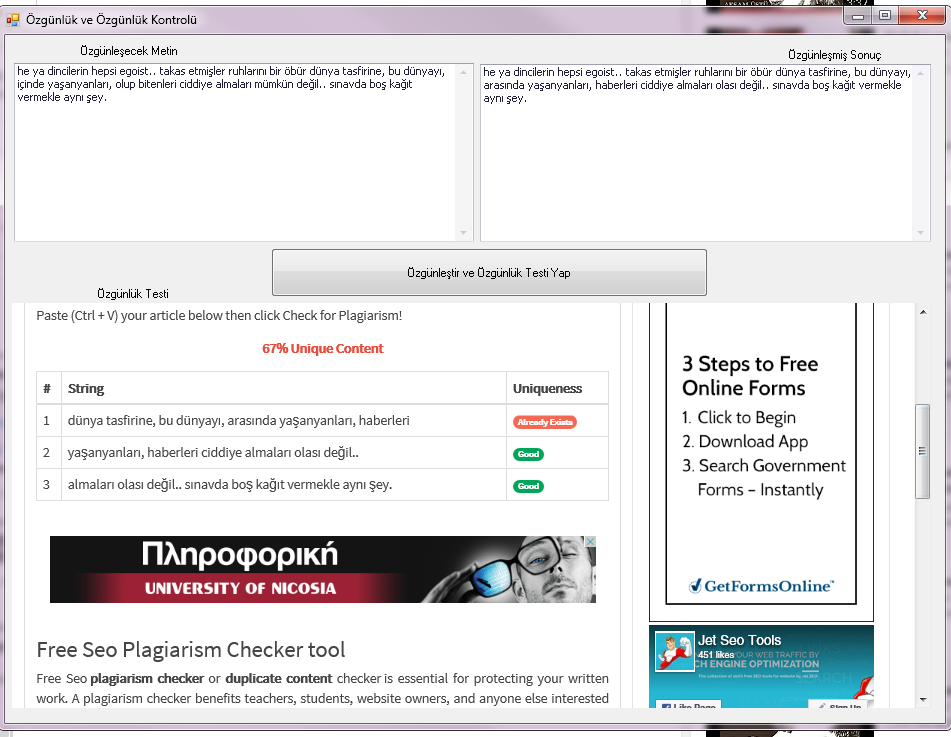
VB .NET'de Yazı özgünleştirme ve özgünleştirme testi yapma kodları SEO
Forma eklenmesi gerekenler; Kaynak kodları için bana ulaşabilirsiniz...

Kodlar:
Public Class Form1
Private Sub Button1_Click(sender As Object, e As EventArgs) Handles Button1.Click
WebBrowser1.Document.GetElementById("makale").SetAttribute("value", MemoEdit1.Text)
'WebBrowser1.Document.GetElementById("İşlemi Yap").InvokeMember("click")
'kontor attıktan sonra cıkan ekranda tamamama bas
For Each Element As HtmlElement In WebBrowser1.Document.GetElementsByTagName("input")
If Element.OuterHtml.Contains("İşlemi Yap") Then
Element.InvokeMember("click")
Exit For
End If
Next Element
WebBrowser2.Navigate("http://www.jetseotools.com/free-seo-plagiarism-checker")
Timer1.Enabled = True
End Sub
Private Sub Timer1_Tick(sender As Object, e As EventArgs) Handles Timer1.Tick
For Each Element As HtmlElement In WebBrowser1.Document.GetElementsByTagName("input")
If Element.OuterHtml.Contains("Demo Göster") Then
Element.InvokeMember("click")
Exit For
End If
Next Element
Timer1.Enabled = False
Timer2.Enabled = True
End Sub
Private Sub Timer2_Tick(sender As Object, e As EventArgs) Handles Timer2.Tick
Dim Elems As HtmlElementCollection = WebBrowser1.Document.GetElementsByTagName("textarea")
For Each Elem As HtmlElement In Elems
'Loop through until you find the one that needs updating (in your case it is named proxylist)
If Elem.Id = "demo" Then
'Update the TextArea Text
' Elem.InnerHtml = "My Text"
MemoEdit2.Text = Elem.InnerHtml
Exit For
End If
Next Elem
MemoEdit2.Text = Split(MemoEdit2.Text, "kelime say")(0)
Timer2.Enabled = False
Timer3.Enabled = True
End Sub
Private Sub Timer3_Tick(sender As Object, e As EventArgs) Handles Timer3.Tick
Dim Elems As HtmlElementCollection = WebBrowser2.Document.GetElementsByTagName("textarea")
For Each Elem As HtmlElement In Elems
'Loop through until you find the one that needs updating (in your case it is named proxylist)
If Elem.Id = "mycontent" Then
'Update the TextArea Text
' Elem.InnerHtml = "My Text"
Elem.InnerHtml = MemoEdit2.Text
Exit For
End If
Next Elem
For Each Element As HtmlElement In WebBrowser2.Document.GetElementsByTagName("a")
If Element.OuterHtml.Contains("Check for Plagiarism") Then
Element.InvokeMember("click")
Exit For
End If
Next Element
WebBrowser2.Focus()
SendKeys.Send("^-")
WebBrowser1.Navigate("http://wmtikk.com/arac/yazi-ozgunlestirici")
Timer3.Enabled = False
End Sub
Private Sub Form1_Load(sender As Object, e As EventArgs) Handles MyBase.Load
Dim fileReader As System.IO.StreamReader
fileReader =
My.Computer.FileSystem.OpenTextFileReader("saniye.txt")
Dim stringReader1 As String
stringReader1 = fileReader.ReadLine()
Timer1.Interval = stringReader1
End Sub
End Class
NINJA PINNER PINTEREST (SEO)

Here’s what Pinner will do for you: 1) Get you thousands of followers on Pinterest quickly on virtual auto-pilot.
2) Make you one of the most popular figures in your industry or niche
3) Get you an avalanche of qualified website traffic, recognition and exposure
4) Dramatically increase your product sales and profits.
5) Create an overwhelming presence on Pinterest, which boosts your social proof and credibility.
Following steps-Done:
1) Install
2) Copy CR file to directory and replace it
3) Open and bypass update (it requests for every start program)
- When skip update, program will close
- Restart program then (skip update too) then click "activation" by input any key you want (I put my 8 numbers) --> apply
- Restart
- Click add your email + password Pinterest (Program is registered)
- Run
4) Start program (this step will be suspended)
5) Wait for few hours (3-4)
Download : http://sh.st/UfD8q
|CRACKED| - FACEBOOK SOCIAL TOOLKIT (SEO)
Must have FACEBOOK SOCIAL TOOLKIT .
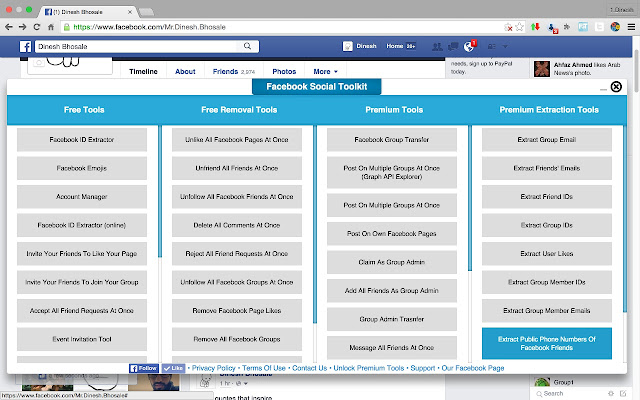
Get Post On Multiple Facebook Groups At Once Plugin.Post on multiple groups tool uses Facebook Graph api for making posting requests, this means your account is protected from getting banned or locked by Facebook spam detection system.
1-Group posting tool posts links with preview
2-Group posting tool works on all Facebook accounts.
3-Can posts on hundreds of groups at a time
4-Select custom delay between posting requests
5-Select a custom starting number for Facebook Groups
6-Informs you when an access token gets invalid
7-Allows you to enter custom message for posting.
8-Simple to use, easy to handle
Facebook social toolkit is far better than any other group posting tool available in the market, it is highly recommended tool.
Chrome Install: -
1. Go to >>> chrome://extensions/
2. Turn ON the developer mode.
3. Click Load unpacked extensions.
4. Choose the extracted ^ folder and press "OK"
version : - 2.2.6
download link for chrome : sh.st/UfIM5
Use any email and password for the premium tools.
Get Post On Multiple Facebook Groups At Once Plugin.Post on multiple groups tool uses Facebook Graph api for making posting requests, this means your account is protected from getting banned or locked by Facebook spam detection system.
1-Group posting tool posts links with preview
2-Group posting tool works on all Facebook accounts.
3-Can posts on hundreds of groups at a time
4-Select custom delay between posting requests
5-Select a custom starting number for Facebook Groups
6-Informs you when an access token gets invalid
7-Allows you to enter custom message for posting.
8-Simple to use, easy to handle
Facebook social toolkit is far better than any other group posting tool available in the market, it is highly recommended tool.
Chrome Install: -
1. Go to >>> chrome://extensions/
2. Turn ON the developer mode.
3. Click Load unpacked extensions.
4. Choose the extracted ^ folder and press "OK"
version : - 2.2.6
download link for chrome : sh.st/UfIM5
Use any email and password for the premium tools.
vb net klasöürdeki dosya bilgilierini listboxa yazdırmak için
1 | Dim finfo As New IO.DirectoryInfo("C:\Story") |
2 | For Each fi In finfo.GetFiles |
3 | Listbox1.Items.Add(fi.FullName) |
4 | Next |
ayrıca textboxun multilineni acıncada yapılabilir
1 | Dim finfo As New IO.DirectoryInfo("C:\Story") |
2 | For Each fi In finfo.GetFiles |
TextBox2.AppendText(myFolder & sFileExtension & Environment.NewLine) 'pcye kaydedilen yer
Next
pinterest follow all from google console
for(var bas=0; bas<1000;bas++){
function pinterestlikenext(){
javascript:var inputlike = document.getElementsByClassName('_ebwb5 _1tv0k _345gm coreSpriteHeartOpen');
javascript:var inputfollow = document.getElementsByClassName('_jvpff _k2yal _csba8 _i46jh _nv5lf');
javascript:var inputnext = document.getElementsByClassName('_de018 coreSpriteRightPaginationArrow');
for(var i=0; i<inputslike.length;i++){
inputlike[i].click();
inputfollow[i].click();
inputnext[i].click();}
}
setTimeout(pinterestlikenext,9000)
}
javascript:var inputlike = document.getElementsByClassName(' Button FollowButton Module UserFollowButton btn hasText notNavigatable primary rounded');
for(var i=0; i<inputlike.length;i++){
inputlike[i].click();}
[VB.net] How to make a Firefox Webbrowser
This tutorial will teach you how to make a Firefox Webbrowser. Unlike the Internet Explorer (default one) this one is faster and better.
Requirements
1. Visual Basic
2. Coding Experience in vb.net
3. A Brain
Tutorial
1. First go to http://webkitdotnet.sourceforge.net/downloads.php and click on Win32 Binary File
![[IMG]](https://lh3.googleusercontent.com/blogger_img_proxy/AEn0k_uq-vvWEYXuqm8FEfhdFHWYJmQoWt8IcnaOkLg_zUwp2DJTRhDUQTTP5EVdSvXk1DyVfcBRTgm9fy5wu0dyRTSjpGFmgWwZeKBSEqypVTw0-TTaGKYCtscPLvgvSUIvoHbNEkU=s0-d)
2. Open the download zip using 7-zip or some archiver.
3. Extract it to a local directory.
4. Open Visual Basic (or Visual Studio)
5. Click on New Project
![[IMG]](https://lh3.googleusercontent.com/blogger_img_proxy/AEn0k_tS2tyR7hHAMJDtKUf2Q4cJYcqkM_fMXVhi9DQRrQXEnNseXaO5zY9Xj221fQkjnvAWFm3l2b9XHwu5jiUgRUTixx7VVUIhDaId8bjiqGE6m8XIq8WaawlIKSL05Wg7VBE23Q=s0-d)
6. Create a new project
7. You will see a window similar like this.
![[IMG]](https://lh3.googleusercontent.com/blogger_img_proxy/AEn0k_t2ZuFdeGJVxhvRZlpseldfHqNpIbtuWm55Zbv42oXQzvE5Uw5_H0qa7qVSPPWnaVIJtmDzRkG3kMs5grIcdlY5ednlxhTcT_0amXUUUDpWF4YBEvYVlEBnbhB6KrYJ7VA2cM4=s0-d)
8. Click on Tools > Choose Toolbox Items
![[IMG]](https://lh3.googleusercontent.com/blogger_img_proxy/AEn0k_vTJbZEbh5CU05PE0vlP0iSPxE7B5jO5uA0CBmQ-G6tpDW4_iHJJVaR8orrilC6gY7AbCtT9kKTX9s-hwSHhiZ4r2PSYuCzM4SQNztI5hfDgYYMKmq9pA8zEe3ZsiNpNI_SPQ=s0-d)
9. Click on browse and locate to the folder where you extracted the zip file.
10. Go to Extracted Folder > bin > WebKitBrowser.dll
11. Click ok
12. Save Project
13. Copy all files from the directory of Webkit
![[IMG]](https://lh3.googleusercontent.com/blogger_img_proxy/AEn0k_sRdBEr20EKFDMONLnkMOFQaWOXcY03CbrM5urKHfHrPXsxdOaMboBB5QKv9qnE1IGNydVdqe-FLYI7XKeeH_nTvnDl3u4q7GLp5ZK118iyqiW0mlSTZCTXQMHmZe_ELxxilao=s0-d)
14. Go to your Project Folder.
15. Navigate to C:\Users\"YOUR USERNAME"\Documents\Visual Studio 2010\Projects\"PROJECT NAME"\"PROJECT NAME"\bin\Debug folder
16. Paste it there.
17. Now go back to the project
17a. Check your Toolbox.
17b. You will find there is a Webbrowser Control is the last section of the Toolbox. Add it to your program.
18. Double click the form.
![[IMG]](https://lh3.googleusercontent.com/blogger_img_proxy/AEn0k_vHQM0c1QZDqcSv1OfGwIfzDNTcC8epSH3zpihsNNOhpxqPH8NEndg78NCbwRLfqWqG0Spm-hEdc6QoJZXvZ_QifTkG19kZIvWHEQfn2j27NbhyMqdKp56bg_CUDJW86QqyfJc=s0-d)
19. Type the following code.
![[IMG]](https://lh3.googleusercontent.com/blogger_img_proxy/AEn0k_uGnn1QDfiubpvLKFH6Js_CcS1PL0YiG8HRQYvcoHRDlWyL_V9CONKdvWOGJC282aIm4G6_PRRpDmGEXX_ex6muUATEmYLEfAejXkGCvsBCPpTtPmqnpfCp_3-NlBjPgWlfmVM=s0-d)
20. Now test your project.
21. You will get something like this.
![[IMG]](https://lh3.googleusercontent.com/blogger_img_proxy/AEn0k_sW0nB2h23etlI2d-hChc38mS5cSizCq4a14EZ0mUrC8EiweWrqNtGocvbKEaFNoSSxH5nZyOwHFRZL9LIbFM9Xv_k8j1lll8DLrXOnS1v2Y7cTMFdkK3OCJ2Cyt98c-hsxEvg=s0-d)
I know most of you will make a bot using this tutorial and go on with your life but giving a thanks and rep is highly appreciated.
ref http://thebot.net/threads/vb-net-how-to-make-a-firefox-webbrowser.142359/
Requirements
1. Visual Basic
2. Coding Experience in vb.net
3. A Brain
Tutorial
1. First go to http://webkitdotnet.sourceforge.net/downloads.php and click on Win32 Binary File
2. Open the download zip using 7-zip or some archiver.
3. Extract it to a local directory.
4. Open Visual Basic (or Visual Studio)
5. Click on New Project
6. Create a new project
7. You will see a window similar like this.
8. Click on Tools > Choose Toolbox Items
9. Click on browse and locate to the folder where you extracted the zip file.
10. Go to Extracted Folder > bin > WebKitBrowser.dll
11. Click ok
12. Save Project
13. Copy all files from the directory of Webkit
14. Go to your Project Folder.
15. Navigate to C:\Users\"YOUR USERNAME"\Documents\Visual Studio 2010\Projects\"PROJECT NAME"\"PROJECT NAME"\bin\Debug folder
16. Paste it there.
17. Now go back to the project
17a. Check your Toolbox.
17b. You will find there is a Webbrowser Control is the last section of the Toolbox. Add it to your program.
18. Double click the form.
19. Type the following code.
20. Now test your project.
21. You will get something like this.
I know most of you will make a bot using this tutorial and go on with your life
but giving a thanks and rep is highly appreciated.ref http://thebot.net/threads/vb-net-how-to-make-a-firefox-webbrowser.142359/
Subscribe to:
Posts (Atom)